Changelog

Product updates

What we've shipped to TurboKast, newest first, and the few things we're working on next.

Plans change. Nothing here has a date until it ships.

September 2026

  1. Feature
    • insights
    • analytics

    Stream insights

    See how each stream went: combined and per-platform viewers, a timeline with stream health, viewer drops and what changed along the way.

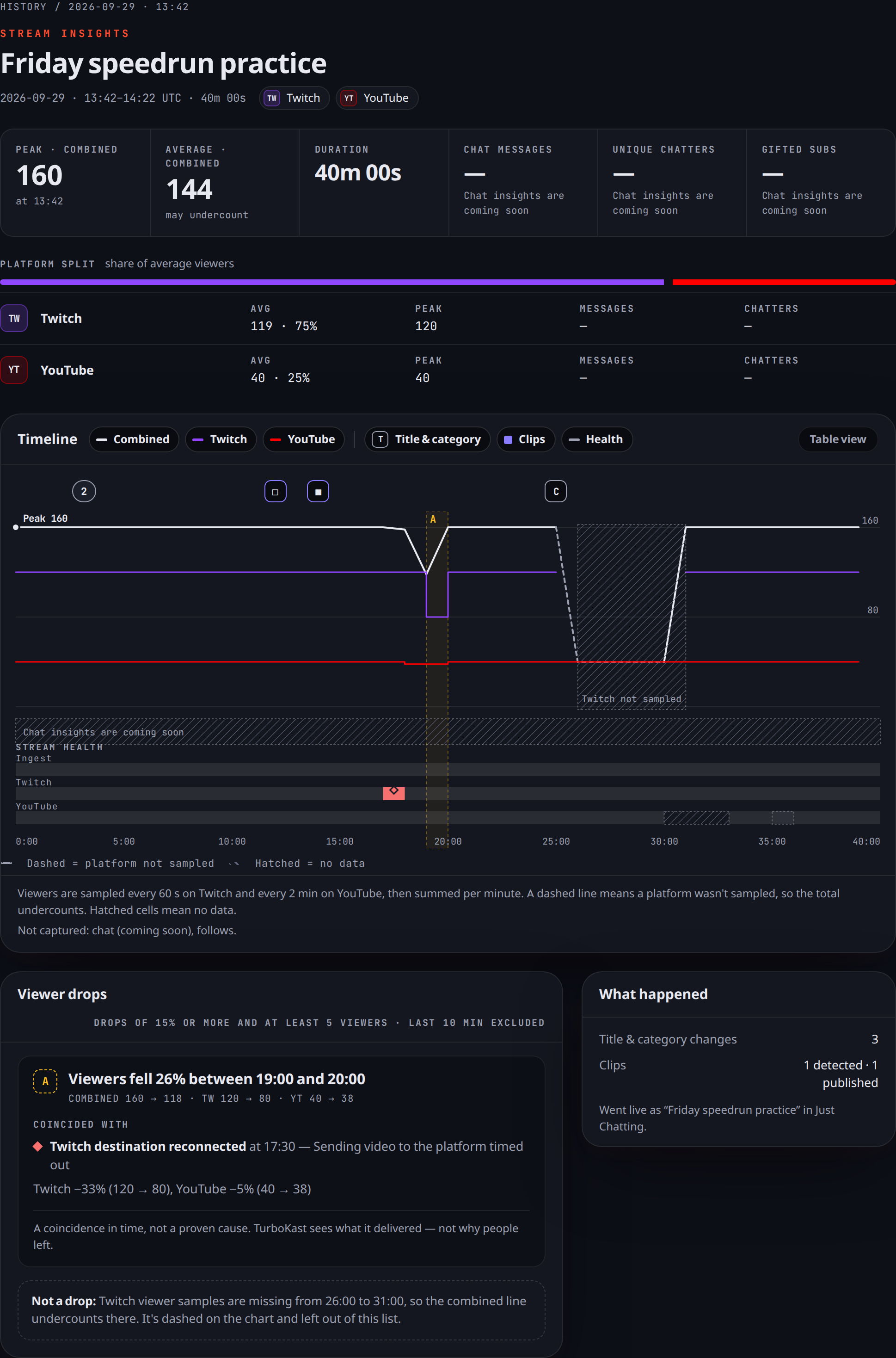
    A Stream insights page showing peak and average viewers, a Twitch and YouTube platform split, a viewer timeline with stream health, and the Viewer drops and What happened panels
    Details Stream insights

    Open Insights for any past stream from your History page.

    What’s on the page

    • Peak and average viewers across all platforms, the stream’s duration, and each platform’s share of your average viewers.
    • A timeline of viewers per platform, with title and category changes, clips and stream health marked on it. A table view is also available.
    • Viewer drops lists falls of 15% or more (and at least 5 viewers), with anything that happened at the same time, such as a destination reconnecting.
    • What happened counts your title and category changes and your clips.

    Changes you make in TurboKast are marked as edited in TurboKast. Changes seen directly on a platform are marked as observed. Stream health data is kept for 90 days. Chat statistics are coming soon.

  2. Feature
    • profiles

    Stream profiles

    Keep a separate set of destinations, title, category and stream key for each kind of stream, and let OBS pick the profile when you go live.

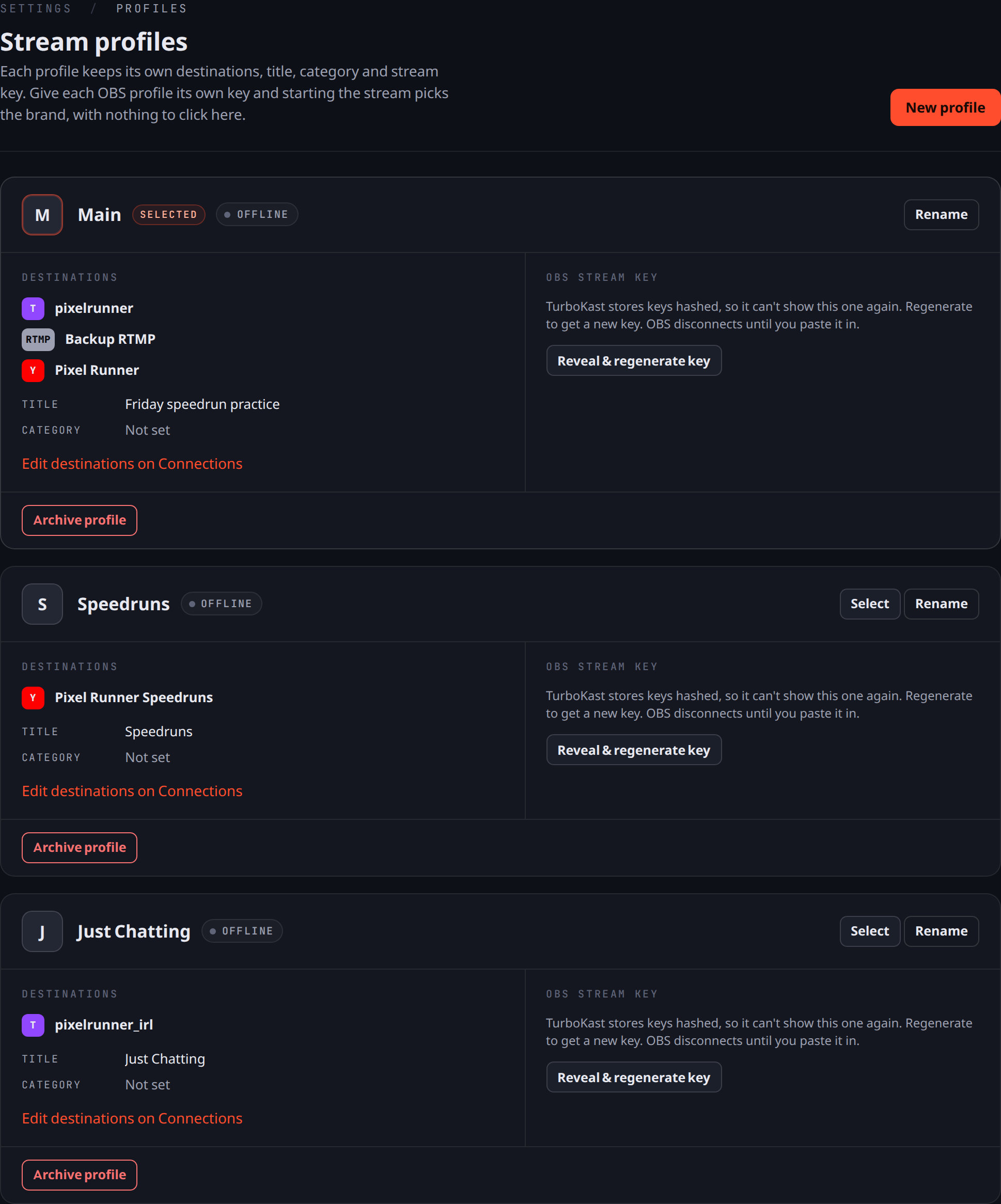
    The Stream profiles settings page listing three profiles, Main, Speedruns and Just Chatting, each with its own destinations, title and OBS stream key controls
    Details Stream profiles

    Stream profiles let one account run several setups, for example a speedrun channel and a chatting stream.

    How profiles work

    • Each profile keeps its own destinations, title, category and stream key.
    • Give each OBS profile its own key. Whichever key you stream with decides the profile that goes live, with nothing to click in TurboKast.
    • Switch between profiles from the menu at the top of the navigation. Switching changes what you’re looking at, not what’s on air.
    • A new profile copies the current profile’s video and clip settings, gets its own stream key and starts with no destinations.
    • Only one profile can be live at a time. If a second one starts, TurboKast tells you which profile is already live.

    Rename, archive and regenerate keys under Settings → Profiles.

  3. Feature
    • chat
    • moderation

    Moderate chat from TurboKast

    Delete messages, time out and ban chatters on Twitch and YouTube without leaving TurboKast.

    Details Moderate chat from TurboKast

    You can now moderate chat from the TurboKast chat rail and the pop-out chat window.

    • Each message has Delete message, Time out and Ban actions. Time outs last 5 minutes.
    • Every action asks you to confirm and names the platform it applies to.
    • The message then shows the result, such as “Timed out”, or the reason the platform refused, such as a missing permission.
    • Hide for me hides a message on your own screen only. Your viewers still see it.

June 2026

  1. Feature
    • destinations
    • quality

    Choose the stream quality for each destination

    Pick Auto, 1080p HD, Smooth, Lower or Source for each destination, so one stream can suit every platform.

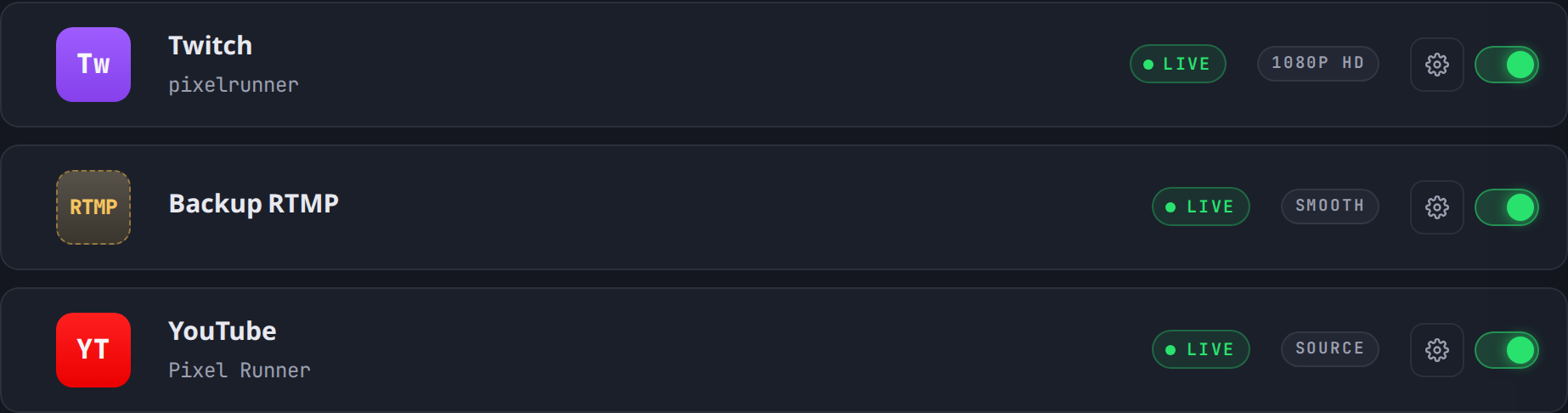
    The Connections page listing three destinations, all Live, each with its own stream quality: 1080p HD on Twitch, Smooth on Backup RTMP and Source on YouTube
    Details Choose the stream quality for each destination

    Every destination now has its own Stream quality setting, found in the destination’s settings on the Connections page.

    The options

    • Auto (the default) keeps your stream at the best quality it can and only lowers it when a platform requires that. When it does, the destination’s label tells you, for example “Auto — capped for Twitch”.
    • 1080p HD, Smooth and Lower are fixed presets.
    • Source sends your stream exactly as OBS sends it.

    The destination list always shows each destination’s current setting.

  2. Feature
    • chat

    One chat for Twitch and YouTube

    Read and reply to your Twitch and YouTube chat in one feed on the Broadcast page, and send a message to every platform at once.

    Details One chat for Twitch and YouTube

    The Broadcast page has a chat rail that merges your Twitch and YouTube chat into one feed.

    What’s in the rail

    • Filter by platform, or view everything together. Each filter shows how many messages it holds.
    • Send one message to every platform, or pick a single platform. Only platforms that can accept a message right now are offered.
    • If a message only reaches some platforms, your text goes back into the box so nothing is lost, and the results show which platforms missed it.
    • A message that arrives on both platforms appears once, tagged “also on” the other platform.

April 2026

  1. Feature
    • chat
    • obs

    Pop-out chat and an OBS chat overlay

    Open your combined chat in its own window, and add it to your stream as an overlay with a private OBS browser-source link.

    Details Pop-out chat and an OBS chat overlay

    Pop-out chat

    The chat rail’s pop-out button opens your chat in a separate window, so it can sit on a second monitor. The window keeps up with new messages. If you scroll back, a “new messages” button takes you back to the latest.

    Chat overlay for OBS

    The Broadcast page gives you a private chat overlay link to paste into an OBS browser source. The overlay shows chat only, with no controls. Add ?bg=transparent to the link for a transparent background. Anyone with the link can view your chat, so you can regenerate it at any time and the old link stops working.

  2. Feature
    • clips

    Automatic highlight clips

    TurboKast spots highlights in your stream from chat, audio and video, and lines them up for you to review and publish.

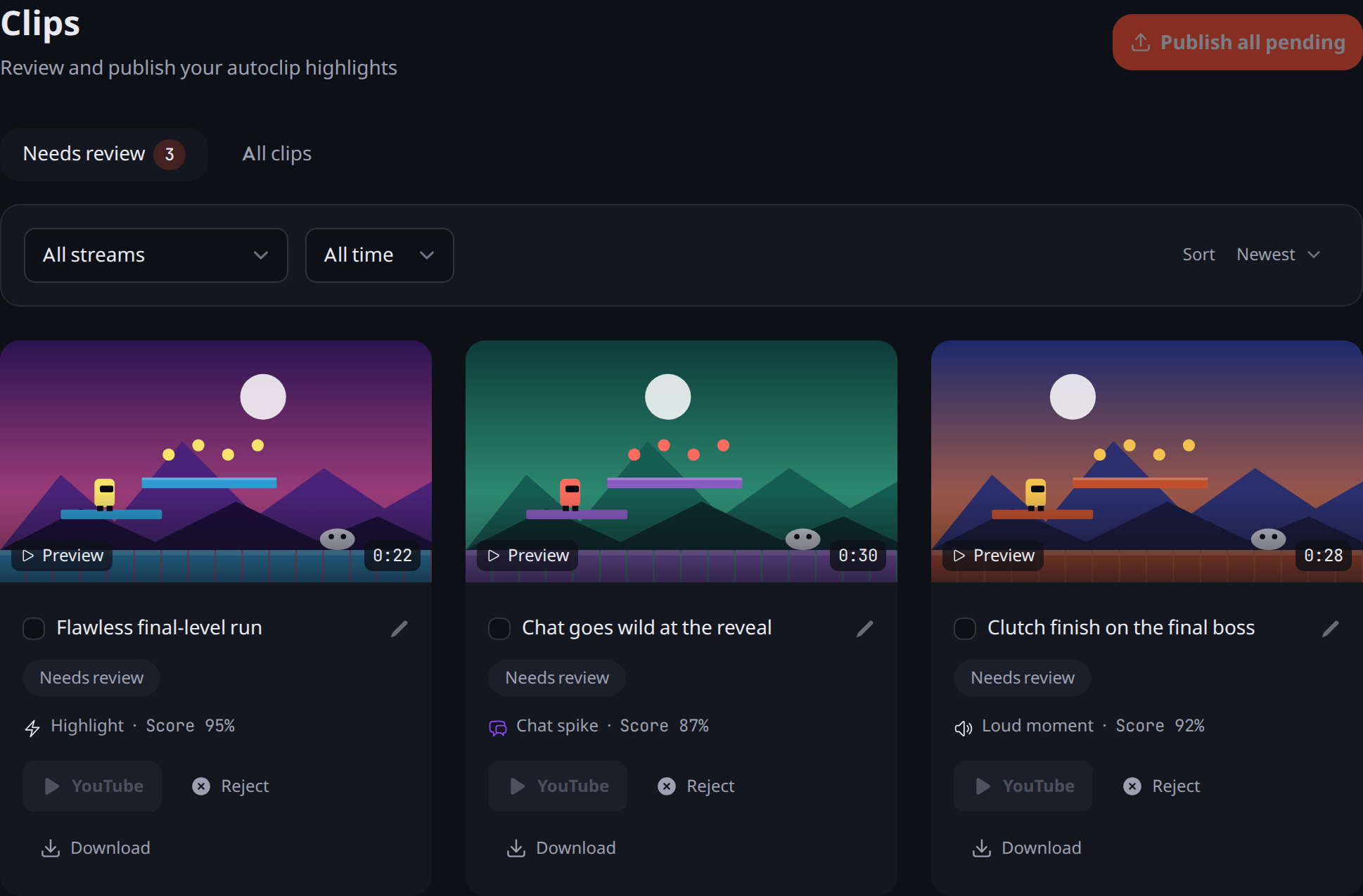
    The Clips page on the Needs review tab, with three clip cards, each with a frame, a score and Publish to YouTube, Reject and Download actions
    Details Automatic highlight clips

    TurboKast watches your stream for highlights: a chat spike, a loud moment or a burst of on-screen action. It saves each one as a clip for you to review.

    Review and publish

    • The Clips page has a Needs review tab and an All clips tab. You can filter by stream, date and status, and sort by newest, confidence or duration.
    • Edit a clip’s title, download it, or publish or reject clips one at a time or in bulk.
    • Clips publish to YouTube as Shorts, so a clip has to be vertical to publish.

    Clip it yourself

    The stream pop-out window has a Clip That button that saves the last 30 seconds as a clip.
  3. Feature
    • multistream
    • destinations

    Go live on Twitch, YouTube and custom RTMP at once

    Stream once from OBS and TurboKast sends it to every destination you connect, with each destination's status on the Broadcast page.

    The Broadcast page's Destinations panel with Twitch, Backup RTMP and YouTube all marked Live, each with an on/off switch
    Details Go live on Twitch, YouTube and custom RTMP at once

    Point OBS at TurboKast once and your stream goes out to Twitch, YouTube and custom RTMP servers at the same time.

    What you get

    • Connect Twitch and YouTube on the Connections page. Custom RTMP servers, including presets for Kick and Trovo, can be added during setup.
    • Each destination has its own on/off switch. Turning one off mid-stream asks you to confirm first, because its viewers are dropped straight away.
    • While you’re live, the Destinations panel on the Broadcast page shows the status of each destination.