clips · shorts · youtube · twitch
Turn a live stream into YouTube Shorts: a full guide
Find the moments worth keeping in a live stream, turn them into vertical clips, and publish the good ones to YouTube as Shorts.
To turn a live stream into YouTube Shorts, you need three things: a way to spot the good moments, a vertical version of each one, and a quick check before it goes public. The Twitch tools and the YouTube tools each cover part of this. TurboKast adds a route that finds clips while you are live. This guide shows all of them, says where each one fits, and shows the TurboKast route on a real account.
What is the difference between a clip and a Short?
A clip is a slice of a stream. A Short is a vertical video that lives in YouTube's Shorts feed. Most clips start out wide, because a stream is wide. Most Shorts are tall, because people watch them on a phone held upright.
That gap is the whole job. You have to find the moment, change its shape, and publish it where Shorts viewers will see it.
YouTube sets the rules for what counts as a Short, and it has changed the maximum length before. Read its Shorts help page for the current rules, and do not trust an old blog post for them, this one included. The same goes for Twitch clip lengths. Both platforms publish their current limits, so this guide points you to them instead of repeating figures that may be out of date.
Three questions decide which route suits you:
- When do you find the moment: while you stream, or after the stream ends?
- Does the clip arrive vertical, or do you reshape it yourself?
- Who looks at the clip before it goes public?
How do you find the moments worth clipping?
You find them in one of three ways: you mark them as they happen, you search a recording afterwards, or software spots them for you while you are live.
Mark them as they happen. This costs you attention. You are busy playing and talking, and the big moments tend to arrive when you are busiest. The Twitch tools let you add a stream marker while you are live. A marker is a flag on the timeline of your past broadcast, so you can jump back to it later. It is a good habit, and you can build it into your routine with a hotkey or a chat command. The Twitch help page on highlights and stream markers explains the options.
Search a recording afterwards. This costs you time. A long stream can hold hours of footage, and you have to watch it again to find the good parts. It works well when you already know roughly where to look, such as a boss fight, a big win or a funny exchange with chat.
Let software spot them while you are live. This costs you a review step. Software can flag chat spikes, loud moments and bursts of on-screen action as they happen. It will miss quiet moments that matter, and it will flag a few that do not. That is why a review step matters. The TurboKast route below has one before you publish a clip to YouTube as a Short.
You can mix methods. Mark the big moments yourself, and let software catch the ones you forgot.
How do Twitch clips and portrait versions work?
A Twitch clip is a saved slice of a stream. You or a viewer can make a clip while the stream is live, and your Twitch channel keeps it. The Twitch tools also make a portrait version of a clip and offer layout choices, such as showing the game and the webcam together in one tall frame. The Twitch help page on how to use clips lists the layouts and the current length limits.
From there, the Twitch tools let you share a clip straight to YouTube Shorts. That makes the Twitch route a sound place to start, because it needs no extra tool and no extra account beyond the ones you already use.
Here is where it fits, and where it stops:
- Clips start from a moment someone chose to clip. If nobody pressed the button, there is no clip.
- You choose the layout, so you decide how your webcam and game share the frame.
- A clip you share becomes your upload, so write its title and description yourself.
- It covers Twitch streams. A stream on YouTube needs YouTube's own tools, covered next.
If you stream to a Twitch channel and a YouTube channel at once, keep each platform's numbers apart when you judge how a clip did. A view on one is not a view on the other, and adding them together tells you nothing useful. Our guide to the two platforms compared covers how the two audiences differ.
What can YouTube do with your own live stream?
YouTube has three tools that sound alike and do different jobs. Mixing them up is an easy mistake to make.
| Tool | What it makes | Where it lives |
|---|---|---|
| Edit into a Short | A Short, cut from a video or a past live stream | The video's page on YouTube |
| Clips and Shorts in Studio | Clips and Shorts from your live streams | YouTube Studio |
| YouTube Clips | A short shareable piece of a video, kept linked to the original | The video's page on YouTube |
Edit into a Short turns part of a video you already have on YouTube into a Short. After a live stream ends, the recording becomes a video, so you can pick a section and publish it. It is a good fit when you know exactly which section you want. The help page for making a Short from your own video lists the limits.
Clips and Shorts in Studio is the part of YouTube Studio set aside for clips and Shorts. It suits a creator who already lives in Studio. Its help page says what it offers today.
YouTube Clips is a different thing. A Clip is a short piece of a video that people share by link. It stays tied to the original video and does not appear as a Short. Use Clips when you want to share a moment with a friend or on another site. Use a Short when you want YouTube's Shorts feed to show it. The Clips help page explains the difference in detail.
All three have one thing in common: you choose the moment. None of them watches your stream and tells you where the good parts were.
How does TurboKast find clips while you are live?
TurboKast finds clips while a stream is running through it. It looks for chat spikes, loud moments and bursts of on-screen action, and it saves a clip for each one it finds. Nothing about it needs a hotkey or a chat command, so you can stay on the game.
Three details matter:
- The clips arrive vertical (9:16), with nothing cropped off. The whole frame, webcam included, sits inside the tall clip, so you do not have to rebuild the layout.
- Clips are 30-second clips. TurboKast picks the moment. It does not trim a clip for you or let you set a length.
- Not every clip will be a highlight. Software cannot judge what your audience cares about, so expect some misses. That is why a review step follows.
Clips are found while you stream, so a stream that did not run through TurboKast has nothing for it to find. For an older stream, use the platform tools above. If you are new to the setup, the getting started guide shows how to point OBS at TurboKast. The multistream docs page and our multistreaming guide explain how to stream to a Twitch channel and a YouTube channel at once.
For setup steps, see the auto-clip docs page. The full list of setup pages sits in the docs.
How do you review clips and publish one as a Short?
You review them on the clip review page. Clips wait there for a week, so you do not have to deal with them the minute a stream ends. A clip you leave alone expires, so build a short review habit into the day after a stream.
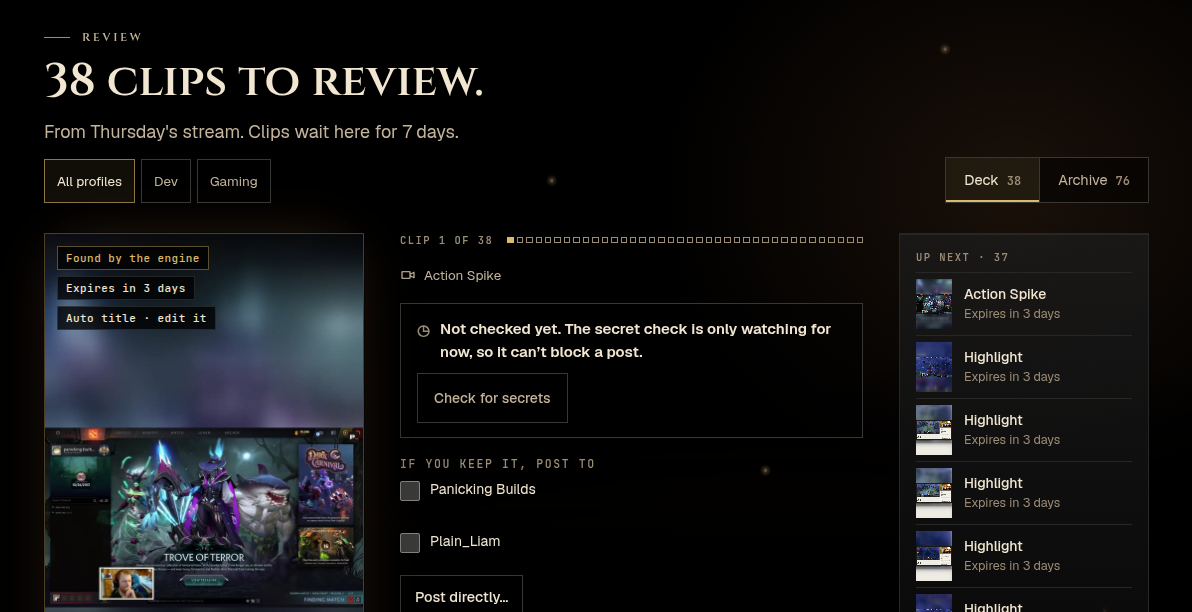
The clip review page, captured on 9 November 2026 on a real account.
The screenshot shows what you work with. From left to right:
- The clip card. It is tall, like a Short. A label tells you the engine found it, and an expiry tag tells you how long you have left. The title is generated, and the card marks it as editable.
- The channel list. Under the heading "If you keep it, post to" you tick the YouTube channels that should get the clip. A creator with a main channel and a second one can choose per clip.
- The Post directly button. It starts a YouTube post for the clip. The page shows the full post form first, so you check the post before it goes out.
- The Up next list. It shows the clips still waiting, so you can see how much review is left.
At the top of the page, filter buttons let you narrow the list by profile.
Here is a simple review routine:
- Open the clip review page the day after a stream.
- Watch a clip from the start. Skip any that miss the moment.
- Rewrite the generated title for the clips you keep. A title that says what happens works better than a generic one.
- Tick the channel, then publish the clip to YouTube as a Short.
- Work through the rest of the list, then close the page.
That is the flow: review a clip, then publish it to YouTube as a Short. You can also filter and sort your clips and publish or reject them in bulk, which helps after a long stream.
If you want captions burned into the picture, TurboKast can turn a clip into a captioned Short. You review the captions before you render. Captions help when a viewer has the sound off.
Which route should you use?
Use the platform tools when you already know which moment you want. Use the TurboKast route when you do not want to hunt for moments, and you want to review them in one place. You can use both on the same stream.
| Twitch clips | YouTube tools | TurboKast | |
|---|---|---|---|
| Who finds the moment | You or a viewer | You | The software, while you are live |
| Shape on arrival | Portrait version offered | You make a Short from a video | Vertical (9:16) |
| Review step | You decide when to share | You decide when to publish | Clips wait for your review |
| Publishes to | Share to YouTube Shorts | YouTube | YouTube, as a Short |
| Trimming | See the Twitch help page | In YouTube's tools | Not in TurboKast |
Where the platform tools win:
- They need no setup. You already have the accounts.
- They cover moments you caught by hand, which software would miss.
- You can trim in the platform's own tools, which TurboKast does not do.
- They work on a stream that did not go through TurboKast.
Where TurboKast fits:
- You are busy while you stream and cannot mark moments.
- You want tall clips that arrive with the full frame intact.
- You want one place to look at the clips from a stream, with a clear review step before you publish a clip to YouTube as a Short.
If a clip needs trimming, download it from the review page and trim it in an editor you already use, or use YouTube's own editing tools. The review page lets you download your clips.
How do you tell if your Shorts are working?
Look at each platform on its own. YouTube Studio shows how a Short did on YouTube, and the Twitch stats show how your Twitch channel did. Do not merge the two into one total.
Start with three simple questions:
- Did people watch the Short to the end, or leave in the first second?
- Did a Short bring people to your channel or your next live stream?
- Which kinds of moment do viewers like most: a win, a fail, a funny exchange with chat?
YouTube explains how it counts Short views on its Shorts analytics page. The way it counts has changed before, so read it before you compare Shorts with long videos.
Give each batch of Shorts a few weeks before you judge it. One Short that does well tells you little. A pattern across ten tells you something. Note which clips you published and which you skipped, then compare. Over time you learn which moments the software finds that your viewers like, and which it finds that they do not.
What if something goes wrong?
No clips appear after a stream. Clips are found while you are live. Check that the stream ran through TurboKast, and use the OBS setup guide if the connection needs fixing. A quiet stream with little chat and few loud moments gives the software less to find, so a stream with few clips is not a fault. Fewer clips is also normal on a night of a slow game.
A clip expired before you reviewed it. Clips wait for a week and then go. Review them inside the week, and make it part of your routine. For moments you cannot afford to lose, mark them yourself with a stream marker or a Twitch clip as a back-up.
The title is wrong or generic. The title is generated, and you can edit it before you publish. Check each one. A clear title helps a viewer decide whether to watch.
YouTube does not treat the upload as a Short. Shape and length decide this. Compare your clip with the rules on YouTube's Shorts help page, which holds the current numbers.
Music in the clip causes a claim. If a song plays in the clip, YouTube may claim it or limit where the Short can play. Use music you have the rights to, or turn the music down in your stream setup. The help page on making Shorts covers how claims work for Shorts.
A clip misses the moment. Software finds a spike, not the story around it. If the clip starts too late or cuts off early, skip it, or download it and trim it in an editor.
Can you use both routes on one stream?
Yes. The routes do not clash, because each one starts from a different source. A marker or a Twitch clip is a moment you chose. A TurboKast clip is a moment the software found.
A sensible split looks like this. You mark the moments you know are big, such as a win you have chased for hours. The software catches the ones you were too busy to mark. Afterwards you look at both sets and publish the ones that work as Shorts.
Over a few streams you learn which route gives you the clips you would have made yourself, and which gives you a surprise. Some of the surprises turn out to be the clips your viewers like most. For more habits that help a channel grow, see our Twitch streaming tips.
Approved by Liam Humphreys (TurboKast Founder). How we check our work
Didn’t answer your question? Contact support.