Twitch Auto Clips makes clips from your stream for you. Most streamers cannot turn it on yet. This page explains who has it, what it does, and what you can use today on Twitch, on YouTube and with TurboKast. We read every Twitch and YouTube page cited here on 18 November 2026.
What is Twitch Auto Clips?
Auto Clips is a Twitch feature that finds moments in your stream and turns them into clips. Twitch’s help page says it can “auto-create and auto-publish clips with titles and captions to your channel page”.
The clips are made for phones. Twitch says they are “formatted to optimize video viewing for vertical formats”, and they are ready about 30 minutes after your stream ends.
You can also ask for a clip out loud. Say “Twitch, Clip That” or “Twitch, Clip It” during a stream, and Auto Clips makes a clip of the 60 seconds before.
Auto Clips can be exported and downloaded, like your other clips.
Who can use Twitch Auto Clips?
Not everyone. On 18 November 2026, Twitch’s help page still calls it an alpha, and says “The Alpha testing is invite-only.”
To be picked, Twitch says a channel must:
- stream in English
- have past broadcasts (VODs) turned on
- have clips turned on
Channels in the DJs category are left out. Twitch picks the channels. You can join the waitlist from your Clips settings.
Twitch first announced Auto Clips at TwitchCon San Diego in October 2025. In May 2026, at TwitchCon Rotterdam, it said: “We’ll be moving to beta in the coming months.” We found no Twitch page that says the beta has started.
What is still missing from Auto Clips?
Auto Clips publishes clips without asking you first. Twitch says a review step is coming, “a review flow that will allow streamers to review clips prior to publishing them”. Until then, check your channel page after each stream.
What can every Twitch streamer use today?
Twitch has clip tools that do not need the alpha:
- Portrait clips. Twitch makes a portrait (vertical) copy of every clip next to the landscape one. You can keep it, move the crop or remove it.
- Any shape. The clip editor lets you pick any aspect ratio from 16:9 to 9:16. Portrait editing is not yet on mobile.
- Up to 60 seconds. A clip can be up to 60 seconds long.
- Download. You can download the landscape or portrait version of clips of your channel.
- Post to other apps. You can post clips straight to YouTube Shorts, TikTok and Snapchat.
- Dual Format streaming. Since June 2026 Twitch has been rolling out vertical and horizontal streaming at the same time to all streamers. With it, you always get both versions of your clips and past broadcasts.
- Stream Recaps. Since October 2026, a recap pulls clips from your stream into one highlight video. Anyone who streams on Twitch can have one.
These tools make and shape clips. Your viewers or you still choose the moments, unless you are in the Auto Clips alpha.
What does YouTube offer?
YouTube has its own clips. A YouTube clip is 5 to 60 seconds long. You can only clip a live stream that has DVR turned on, and only within the DVR window.
For streams from a phone, YouTube can also save a Short highlight that it pulls from your live stream automatically. It is saved as private, so you choose when to share it. It works for vertical mobile streams of 10 minutes to 12 hours with live chat on.
How do they compare?
What each option offers, from each company’s own pages, checked on 18 November 2026.
| Twitch Auto Clips | Twitch clips (all streamers) | YouTube | TurboKast | |
|---|---|---|---|---|
| Who gets it | Invite-only alpha: channels Twitch picks, English-language streams | Every Twitch streamer | Clips where YouTube offers them; Short highlights for vertical phone streams only | Streams you send through TurboKast |
| Who finds the moment | Twitch, automatically, or your voice command | You or your viewers | You or your viewers; Short highlights are picked automatically | Machine-found clips from chat spikes, loud moments and bursts of on-screen action |
| Vertical clips | Yes, formatted for vertical | Portrait copy of every clip; any shape from 16:9 to 9:16 | Short highlights from vertical phone streams | Clips arrive vertical (9:16), with nothing cropped off |
| Length | Last 60 seconds by voice command | Up to 60 seconds | 5 to 60 seconds | 30-second clips |
| Review before it goes public | Not yet: a review step is planned | You or a viewer makes each clip | Short highlights are saved as private | You review a clip, then publish it to YouTube as a Short |
| Download | Yes | Yes | Not covered on the pages we checked | Yes |
| Post to YouTube Shorts | Can be exported, as with other clips | Yes, direct | Short highlights are Shorts | Yes, after you review it |
Sources, checked 18 November 2026: Twitch Help, “Auto Clips” and “How to use Clips”; Twitch Help, “Stream Recaps”; Twitch blog, 17 October 2025, 30 May 2026, 17 June 2026 and 20 October 2026; YouTube Help, “Create Clips” and the live stream Short highlight article.
Where does TurboKast fit?
TurboKast sends one stream from OBS to Twitch and YouTube. While it does, it finds clips in that stream from chat spikes, loud moments and bursts of on-screen action. The clips arrive vertical (9:16), with nothing cropped off, and each one is 30 seconds long.
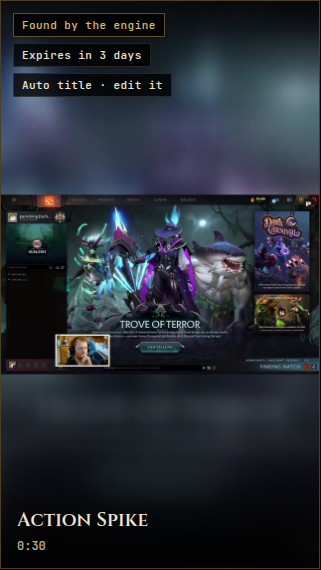
You filter and sort your clips, edit a clip’s title, then publish it to YouTube as a vertical Short or reject it. You can also download your clips, or turn a clip into a captioned Short. Multistreaming and autoclip are free: we do not charge per hour, destination, GB or bitrate.
TurboKast does not post clips to Twitch. Twitch’s own clip tools stay the place for that.
Which should you use?
If you are in the Auto Clips alpha, try it, and check your channel page after each stream until Twitch adds the review step.
If you are not, Twitch’s own clips, portrait copies and Stream Recaps already work for every streamer. If you also stream to YouTube and want clips found for you, then reviewed and published as Shorts, that is the job TurboKast does.